Installation
Choose the installation method that fits your workflow. Node.js 20 or higher is required for local builds.
1. Local Installation (Recommended)
Running docmd locally keeps your documentation configuration versioned directly with your source code.
# Install as a development dependency
npm install -D @docmd/core

# Initialise a new project
npx docmd init
# Install as a development dependency
pnpm add -D @docmd/core

# Initialise a new project
pnpm dlx docmd init
# Install as a development dependency
yarn add -D @docmd/core

# Initialise a new project
yarn dlx docmd init
# Install as a development dependency
bun add -D @docmd/core

# Initialise a new project
bunx docmd init
# Pull the official multi-architecture image
docker pull ghcr.io/docmd-io/docmd:latest

# Build documentation from local docs/ to site/
docker run -v $(pwd)/docs:/docs -v $(pwd)/site:/site ghcr.io/docmd-io/docmd:latest build
See the Docker Deployment Guide for Docker Compose and Kubernetes configurations.
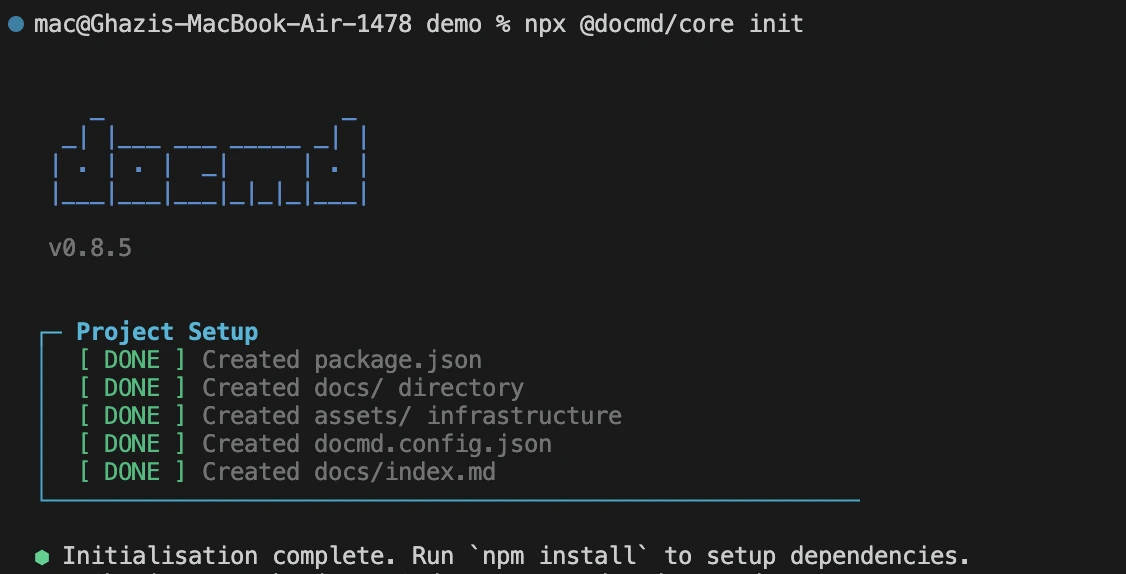
Once installed locally, you can use npx docmd dev to start the live preview server, or add build scripts directly to your package.json.
2. Global Installation
Install the package globally to create or preview sites anywhere on your system without creating a local project.
npm install -g @docmd/core
pnpm add -g @docmd/core
yarn global add @docmd/core
bun add -g @docmd/core
Once installed, the docmd binary is available globally:
docmd dev   # Start a local development server
docmd build # Build static site output
3. Browser-Only Integration
Embed the rendering engine directly inside an existing web application via CDN.
This bypasses the CLI and loads the parsing engine directly in the browser. Use this for dynamic portals and interactive client-side rendering rather than static SEO websites.
Add the stylesheet and JavaScript engine to your HTML header.
<!-- Core Stylesheet -->
<link rel="stylesheet" href="https://unpkg.com/@docmd/ui/assets/css/docmd-main.css">

<!-- Isomorphic Rendering Engine -->
<script src="https://unpkg.com/@docmd/live/public/docmd-live.js"></script>
See the Browser API Guide for complete integration details.
4. Troubleshooting
Permission Denied (EACCES Errors)
Do not use sudo for global installs on macOS or Linux. Fix permission conflicts using a Node.js version manager like nvm or fnm.
PowerShell Execution Policies (Windows)
If Windows blocks command execution, open PowerShell as administrator and enable current-user script execution.
Set-ExecutionPolicy RemoteSigned -Scope CurrentUser
